

How to Upgrade PC Storage: What to Know Before Installing an SSD
However, upgrading storage is not as simple as buying the largest-capacity drive and plugging it in. Before purchasing and installing an SSD, you first need to understand your device's hardware specifications and storage expansion limitations. This article will walk you through how to check your specifications, evaluate storage upgrade options, and choose the SSD that best fits your needs.
How Do I Know If My Computer Storage Can Be Upgraded?
Before buying a new drive, the first step is to confirm your computer's available storage expansion options. The way you check and the points you need to watch differ significantly between desktop PCs and laptops.
How to Upgrade Desktop PC Storage
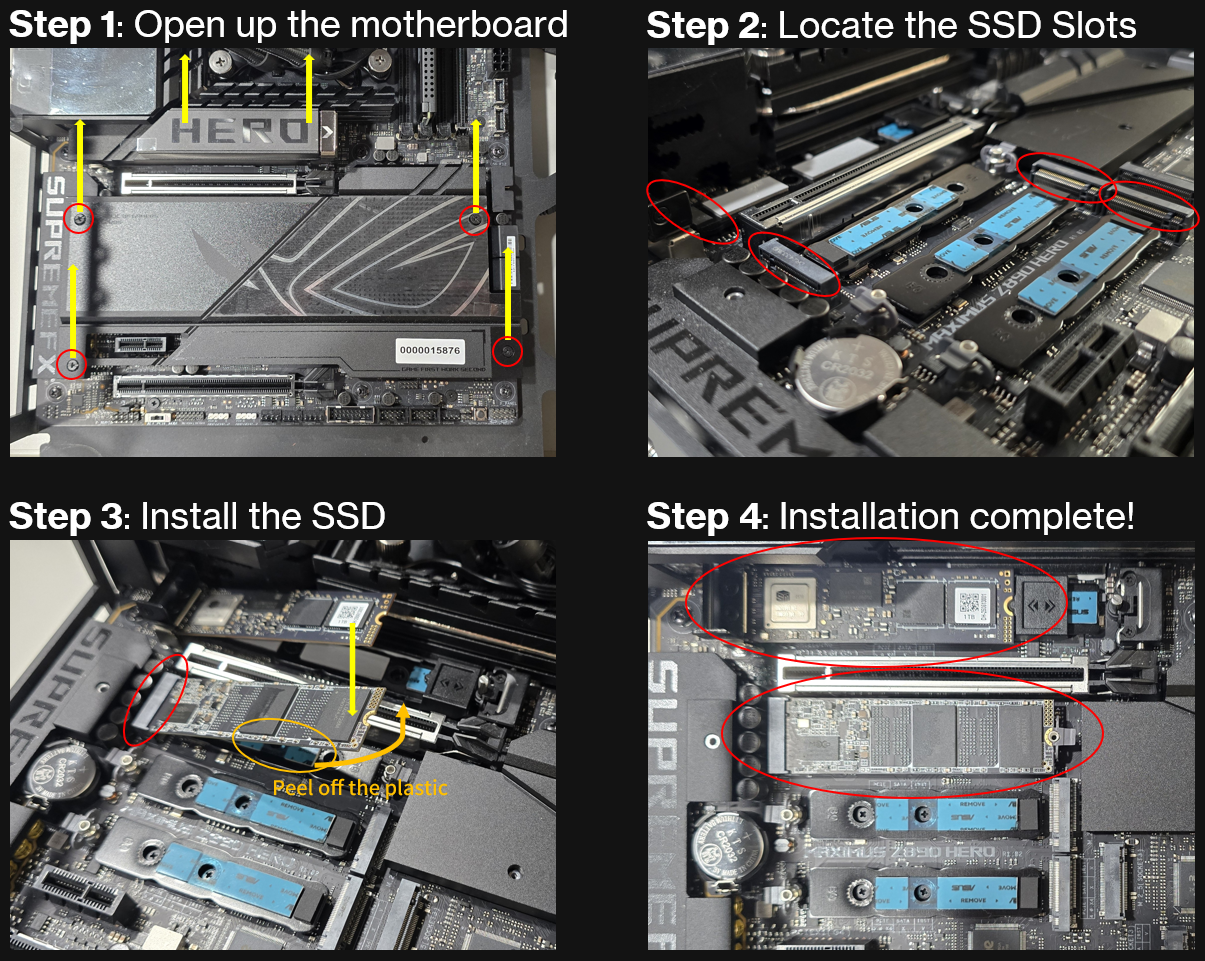
Desktop PCs generally offer better expandability. To check your motherboard model, press Windows + R, type msinfo32, and look for the BaseBoard information. Once you've identified your motherboard model, visit the manufacturer's official website and check the specifications to see how many M.2 slots are available and which PCIe generations they support.
⚠️ M.2 Installation Note: The number of PCIe lanes on a motherboard is limited. On some motherboards, the second or third M.2 SSD expansion slot shares PCIe lanes with the graphics card. Installing an SSD in the wrong slot may reduce the bandwidth available to the GPU (for example, from x16 to x8), which can affect the performance of both devices.
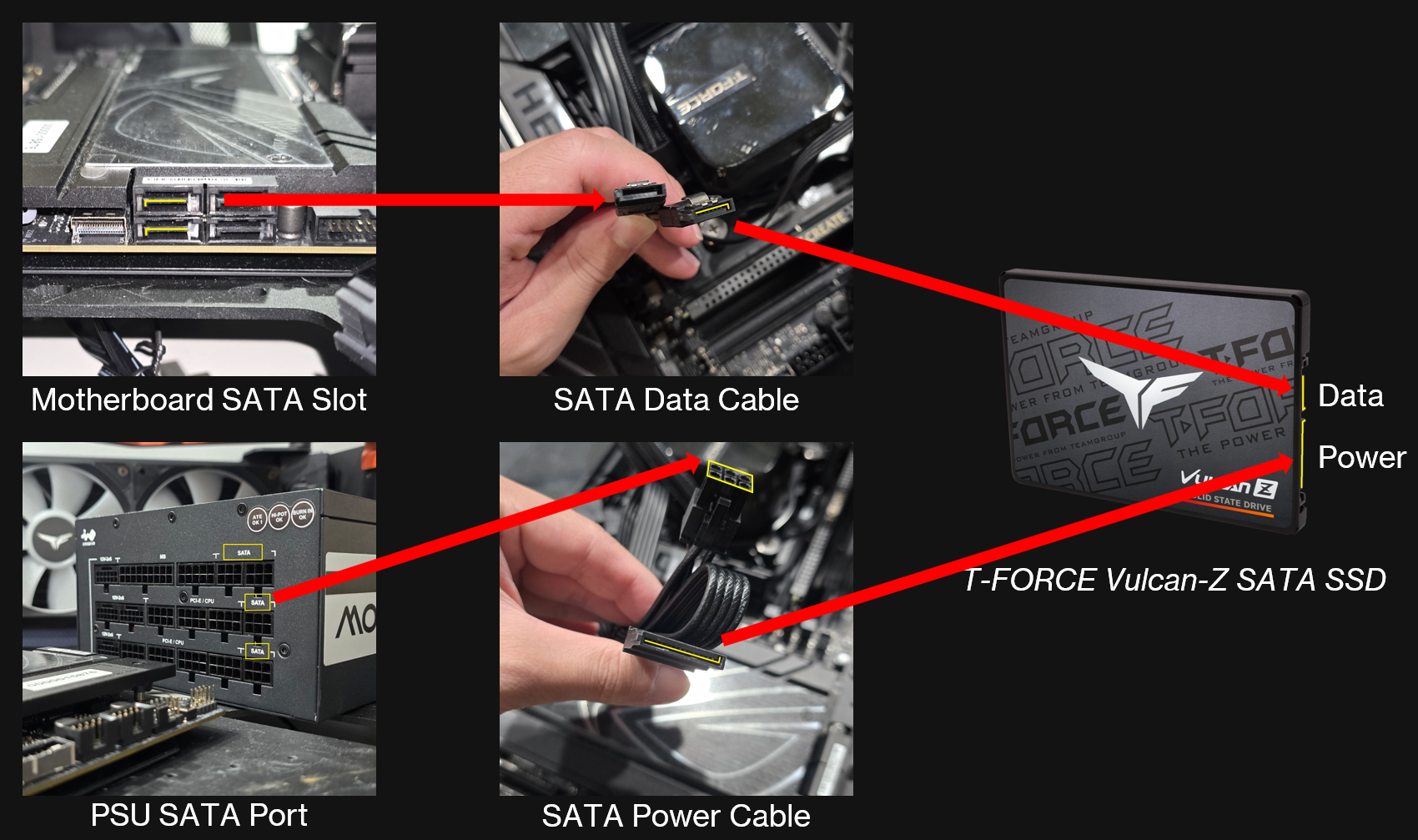
⚠️ SATA Expansion Note: If you want to add a 2.5-inch SATA SSD, open the PC case and check whether the power supply still has an available SATA power cable/connector. SSD packages usually do not include cables, so you will also need to purchase a SATA data cable and confirm that the motherboard has an unused SATA port.
How to Upgrade Laptop Storage
Compared to desktop PCs, laptops have much more limited internal space, so they may not always have a second SSD slot. To check your laptop model, press Windows + R, type msinfo32, and look for System Manufacturer and System Model. Once you've identified your laptop model, search for its specifications online to confirm whether it has a second SSD slot and which PCIe generation it supports.
⚠️ Warranty and Manufacturer Support: In most cases, opening the laptop's bottom cover yourself may void the manufacturer's warranty (for example, by breaking a tamper-evident seal). If your laptop is still under warranty, it is strongly recommended that you have the manufacturer's service center perform the installation.
⚠️ DIY Installation: If your laptop warranty has expired and you have the necessary hardware knowledge and disassembly/assembly experience, you can choose to open the bottom cover and upgrade it yourself. After opening the cover, disconnect the laptop battery cable first to avoid short circuits that could damage the motherboard during installation.
What If There Is No Extra PCIe Slot but I Still Want More Storage?
1. Replace the Main Drive with a Higher-Capacity SSD
If your motherboard or laptop has only one storage slot and it is already occupied, you can purchase a higher-capacity SSD to replace the existing main drive. Below are two common methods for transferring your data:Method 1: Clone the Drive Using a Second PC and DiskGenius
If you have access to another desktop PC with multiple M.2 slots, install both the old drive and the new drive in that backup computer. Then open the powerful drive management tool “DiskGenius” and use its “System Migration” feature to copy all data from the old drive to the new one. Once the copy is complete, install the new drive back into the original computer for a seamless upgrade.
Method 2: Clone the System and Data (Clone)
When buying a high-capacity M.2 SSD, also purchase an “M.2 PCIe enclosure.” Install the new SSD in the enclosure and connect it to your computer via USB. Then use disk cloning software to fully clone the system and data from the old drive to the new SSD. Once the clone is complete, replace the old drive with the new one and the computer can boot from it.2. Use an External Drive to Expand Storage
The Safest Storage Upgrade Option Without Disassembling the PC
For users who do not want to affect their computer warranty or are concerned about opening the case and installing internal hardware, an external drive is the safest and easiest upgrade option. No screwdriver or hardware knowledge is required, which helps eliminate the risk of accidentally damaging the motherboard or other internal components.
Slower Transfer Speeds
Although expanding storage with an external drive is very simple, transfer speeds are limited by the bandwidth of the USB interface. Even with a newer Type-C interface, read and write speeds can still be noticeably slower than the computer's internal SSD. This type of storage expansion is well suited for “cold storage” of documents, backup data, photos, or video files, but it is less suitable for running large AAA games that require high read speeds or for heavy video editing. Users can choose the external drive they need based on their device's USB specifications
Plug and Play
The biggest advantage is maximum convenience and portability. Simply connect the cable to the computer and the system will automatically detect and access the drive. This also makes it easy to carry data with you and share files across desktops, laptops, and even different computers and operating systems.How Should I Choose an SSD?
After confirming your available storage expansion options, keep in mind that although PCIe is backward and forward compatible when choosing an NVMe SSD, the actual maximum transfer speed will be determined by whichever specification is lower: the motherboard slot or the SSD. Users can choose based on their needs: high-end gamers or creators can match the SSD to the motherboard's highest supported specification to maximize bandwidth, while PCIe 3.0 or 4.0 is sufficient for general office work.If you plan to upgrade your computer in the near future, you can buy a forward-looking PCIe 5.0 SSD and install it in a PCIe 4.0 slot now, then unlock its full potential after moving it to a newer system later, avoiding a second purchase. Alternatively, pairing a PCIe 5.0 slot with a powerful, mainstream PCIe 4.0 SSD is also a practical option capable of handling a wide range of demanding workloads.
| Usage Scenario | Motherboard Slot Support | SSD Specification Purchased | Estimated Maximum Operating Speed | Speed Limitation and Explanation |
| Scenario 1 Perfect Match |
PCIe 5.0 | PCIe 5.0 | PCIe 5.0 (approx. 14,000 MB/s) |
No bottleneck. The generations match, allowing the SSD to deliver its full rated performance. |
| Scenario 2 Future Upgrade Reuse |
PCIe 4.0 | PCIe 5.0 | PCIe 4.0 (approx. 7,500 MB/s) |
Limited by the motherboard. The SSD runs at a lower speed for now, when reused in a future new computer, its full performance can be unlocked. |
| Scenario 3 Price-to-Performance |
PCIe 5.0 | PCIe 4.0 | PCIe 4.0 (approx. 7,500 MB/s) |
Limited by the SSD itself. Even if the motherboard provides more bandwidth, the SSD’s physical performance limit cannot be exceeded. |
Scenario 4: Affordable Storage Expansion Option: SATA SSD
If your motherboard supports it and your goal is simply to get a large amount of space for files that do not require high read speeds (for example, family photo libraries, movie collections, or cold backup data), a 2.5-inch SATA SSD is the best choice. Although its maximum speed is limited by the SATA 3 specification (about 550 MB/s), its cost per GB is very low, making it an excellent option for expanding bulk “data storage.”
| Interface Specification | Estimated Maximum Read Speed | Thermal Performance | Price and Value | Recommended Use Cases |
| PCIe Gen5 (M.2) | Approx. 14,000 MB/s | High (heatsink recommended) |
High price | Users seeking maximum performance; reuse in future upgrades (future-proofing) |
| PCIe Gen4 (M.2) | Approx. 7,500 MB/s | Relatively high (heatsink recommended) |
Current market mainstream | AAA gaming, 4K video editing, users seeking a smooth experience |
| PCIe Gen4 (M.2) | Approx. 3,500 MB/s | Moderate | Lower price | Basic office tasks, light gaming, budget-conscious users |
| SATA 3 (2.5-inch) | Approx. 550 MB/s | Low | Lowest cost per GB | Basic office tasks, light gaming, budget-conscious users |
Conclusion
Expanding PC storage is not just about comparing capacity and speed; it is also about matching hardware specifications to your own needs. Before starting an upgrade, use system information to confirm the slot configuration of your motherboard or laptop, make sure the required SATA power and data cables are available, and check the relevant warranty terms.When choosing specifications, there is no need to blindly pursue the newest generation. Instead, choose based on “price-to-performance (PCIe 4.0),” “future upgrade reuse (PCIe 5.0),” or “high-capacity storage only (SATA SSD),” depending on what best fits your needs. Finally, before disassembling or installing any hardware, always back up important data to make sure the upgrade process goes as smoothly as possible.
Check out TEAMGROUP Products
-
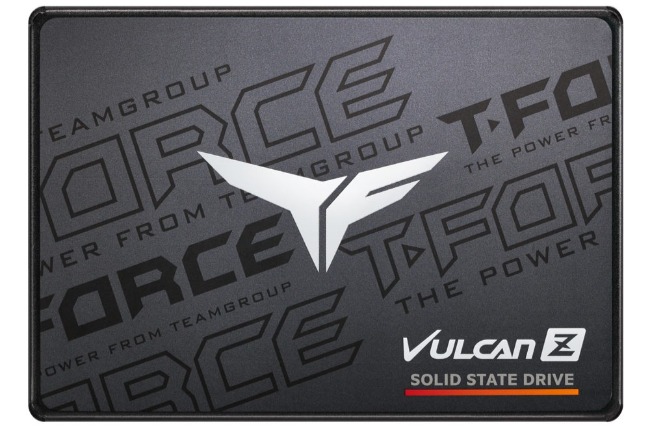
T-FORCE VULCAN Z SATA SSD
The T-FORCE VULCAN Z is a 2.5-inch SATA III internal SSD designed to improve computer performance and gaming experiences. With read speeds up to 550 MB/s, 3D NAND technology, and reliable data protection features, it provides faster boot times, quicker game loading, and efficient everyday performance compared to traditional hard drives. -
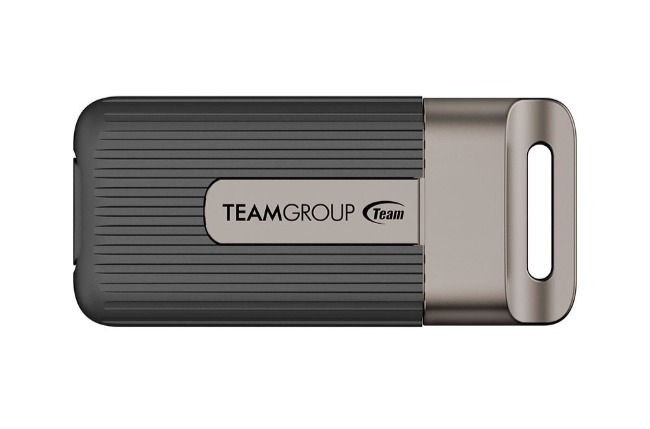
TEAMGROUP PD20 Mini External SSD
The TEAMGROUP PD20 Mini is a compact, lightweight portable SSD designed for fast and convenient data storage. Featuring a USB-C interface, read speeds up to 2,000 MB/s, and IP54 dust and splash resistance, it is ideal for transferring files, backing up important data, and everyday use on the go.