

USB Port Colors Explained: Understanding USB Standards and Transfer Speeds
Have you ever tried to transfer a relatively small file, only to watch the progress bar move at a painfully slow pace? It is easy to assume that the USB flash drive is faulty or simply not fast enough. In many cases, however, the real issue is much simpler: the drive is connected to the wrong USB port.
The colors inside USB ports are more than a visual detail. They may indicate differences in USB specifications, transfer performance, or power delivery capabilities. Knowing what these colors represent can help you choose the right connection and unlock the full performance potential of your storage device.
Every USB Port Serves a Purpose
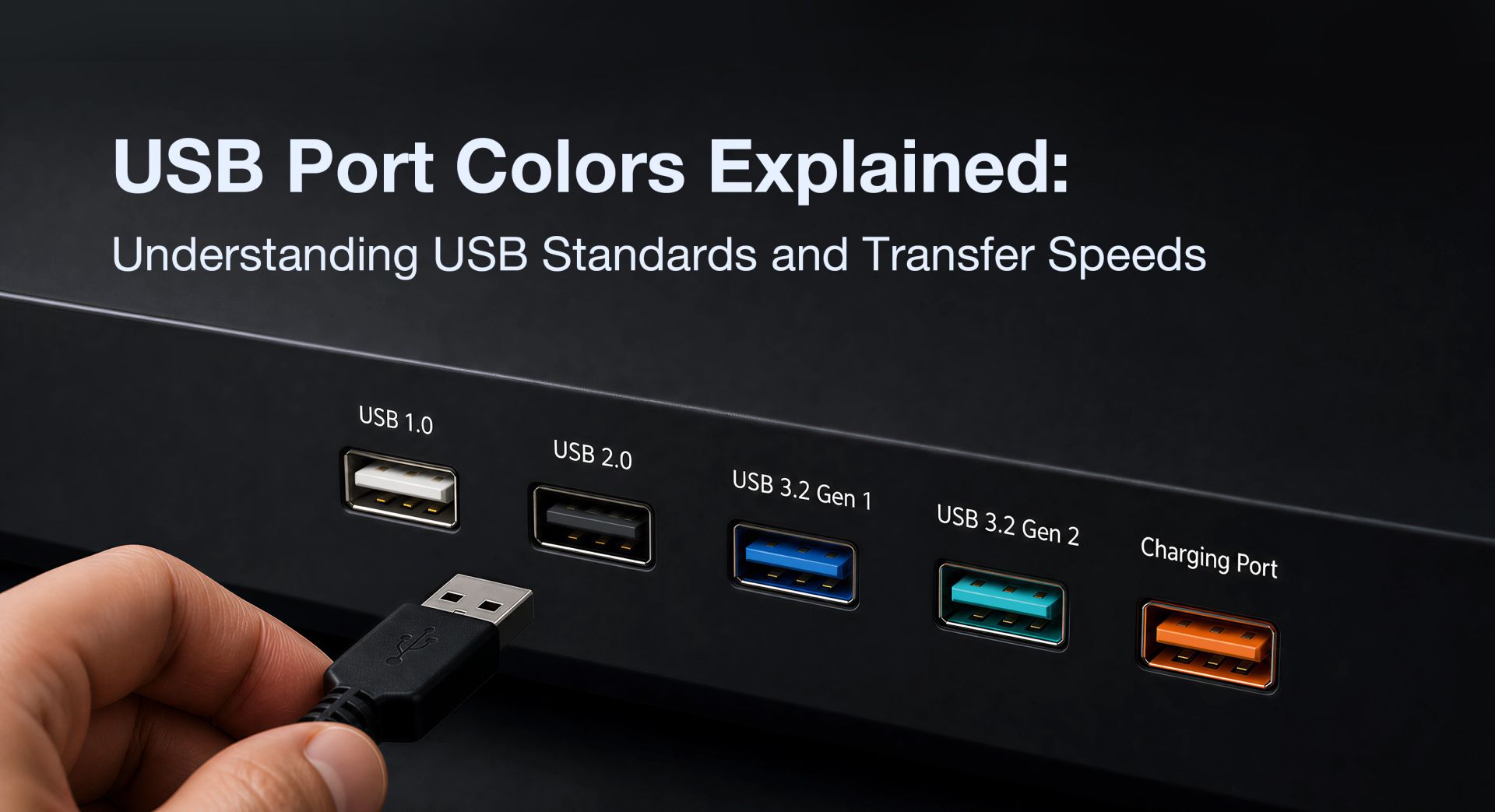
Take a closer look at the USB ports on a desktop PC or along the side of a laptop, and you may notice that they are available in several different colors. These differences are intentional. A port's color may reflect its USB generation and, more importantly, the data transfer speeds it supports. Learning to identify the available connections is a simple but important step toward getting the most from your hardware.
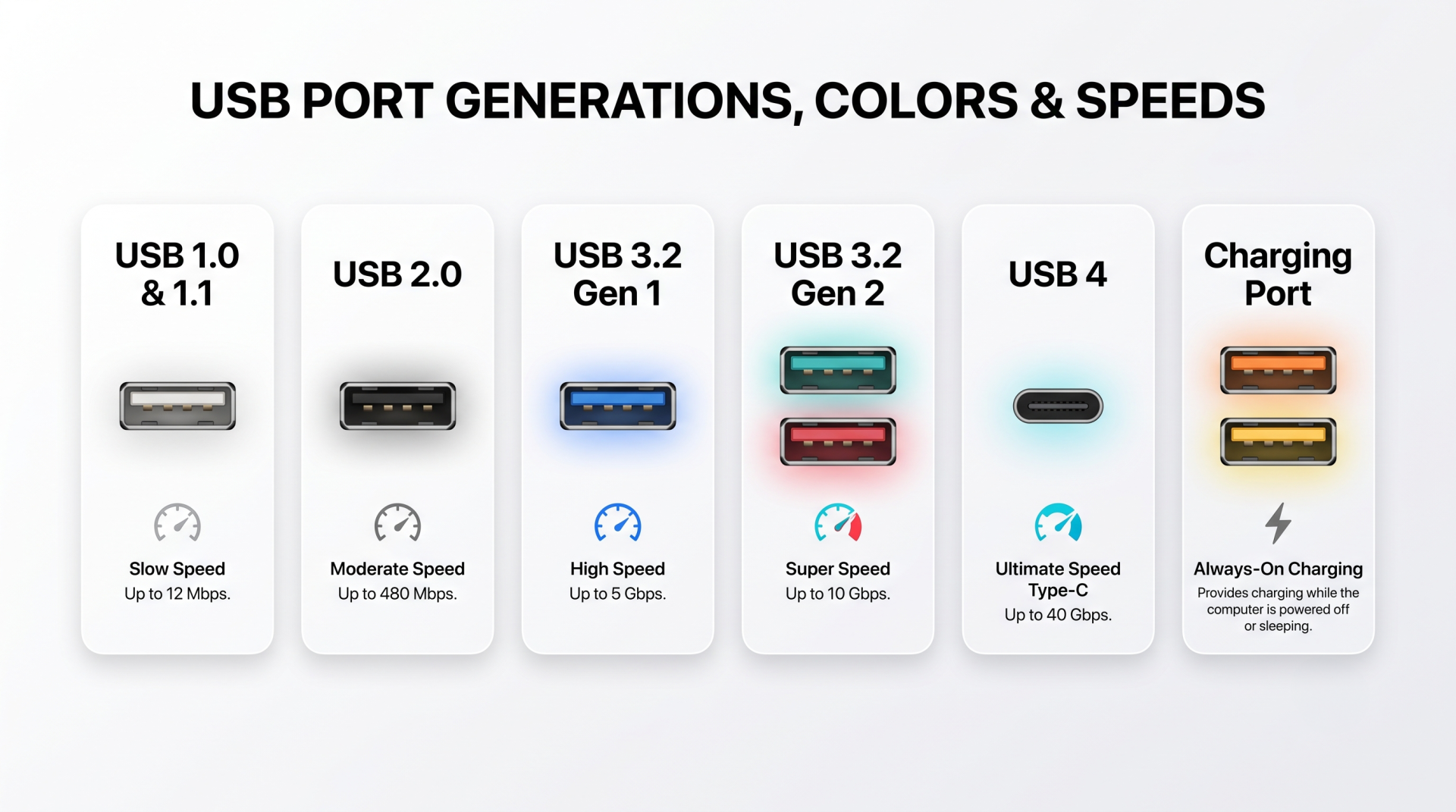
| USB Generation | Port Color & USB Specification | Transfer Speed & Features |
|---|---|---|
| USB 1.0 & 1.1 | White | Up to 12 Mbps or 1.5 MB/s |
| USB 2.0 | Black | Up to 480 Mbps or 60 MB/s |
| USB 3.2 Gen 1 | Blue | Up to 5 Gbps or 625 MB/s |
| USB 3.2 Gen 2 | Teal & Red | Up to 10 Gbps or 1250 MB/s |
| USB 3.2 Gen 2 to USB 4 | No Specific Color (USB Type-C) |
Up to 40 Gbps or 5000 MB/s |
| Charging Port | Orange & Yellow | Provides power even when the computer is off or in sleep mode |
Why Is My USB Flash Drive So Slow?
A high-speed USB flash drive does not always deliver high-speed transfers the moment it is plugged in. Its actual performance depends on whether the drive and the connected USB port support compatible specifications.
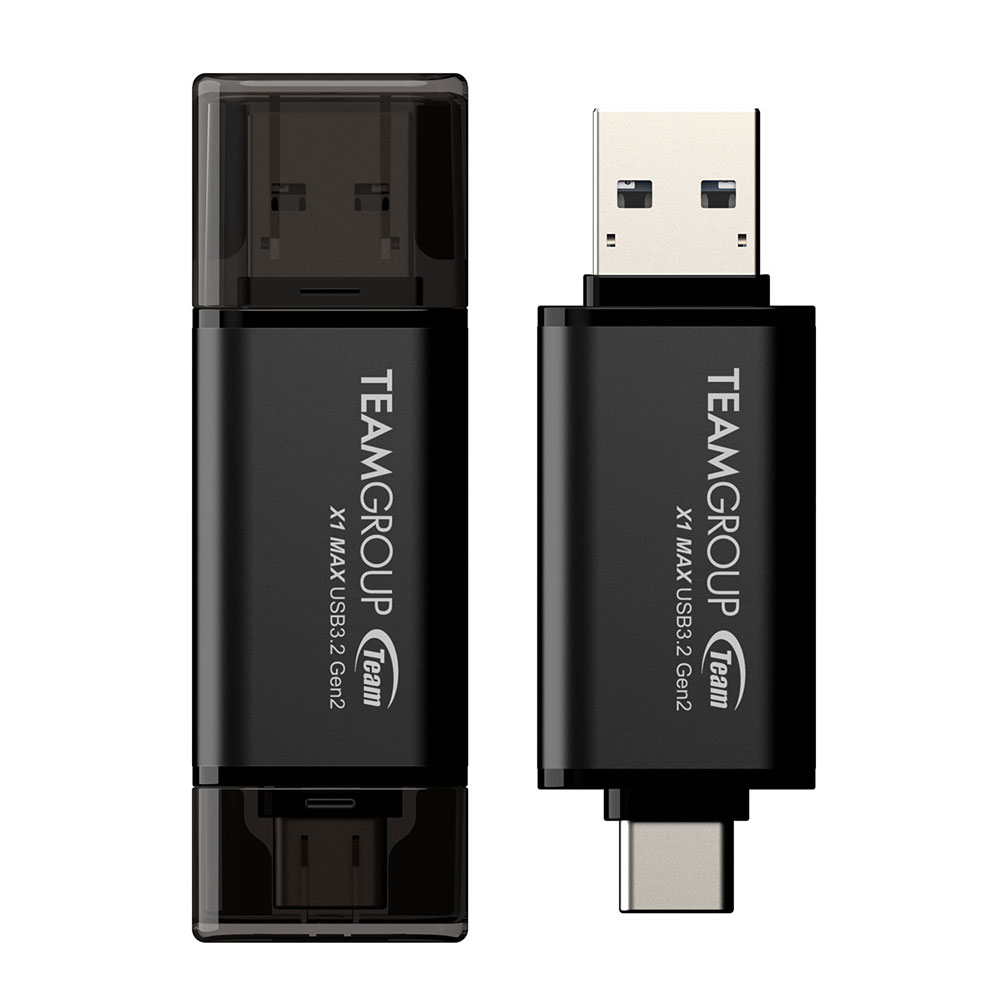
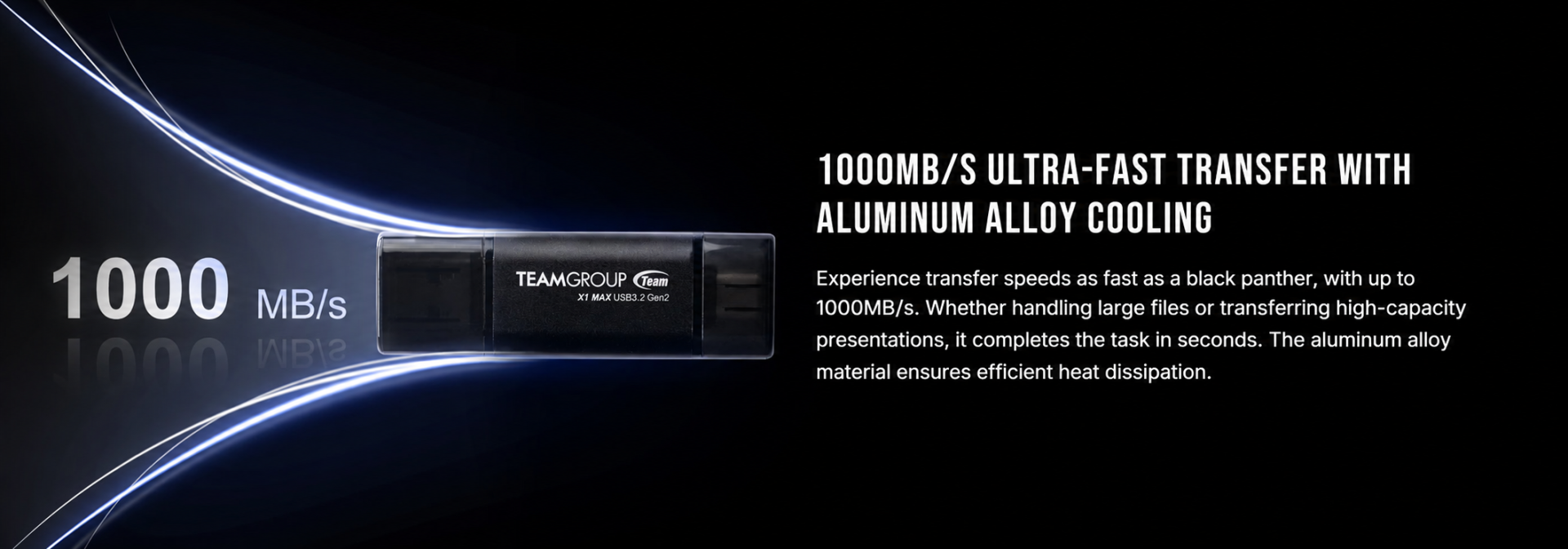
For example, the X1 MAX USB Flash Drive offers read and write speeds of up to 1,000MB/ s. To reach its full performance potential, it must be connected to an appropriate interface, at minimum, a teal or red USB 3.2 Gen 2 port, or one that supports an even higher specification.
Choosing the correct port allows the flash drive to perform closer to its rated speed. Connecting it to a lower-specification interface, on the other hand, creates a performance bottleneck that limits transfer speeds from the start.
What Happens When the Drive and Port Specifications Do Not Match?
USB devices are designed to support backward compatibility. When a flash drive and a port use different specifications, the system automatically adjusts to maintain a stable connection.
The transfer speed is then determined by the slower of the two. A premium flash drive cannot exceed the limits of an older USB port. Likewise, a faster USB port cannot increase the speed of a drive that supports lower specifications.
This explains why upgrading to a faster flash drive may not produce an obvious improvement in everyday use. The issue is particularly common with laptops, where only some of the available USB ports may support higher transfer speeds.
Manufacturers often include one or two high-speed ports for storage devices and other bandwidth-intensive hardware. The remaining ports may use more basic specifications, which are usually sufficient for everyday peripherals such as mice and keyboards. Plugging a high-performance flash drive into one of these slower ports will naturally limit its transfer rate.
Orange and Yellow USB Ports
Orange and yellow USB ports serve a different purpose from ports that use color coding to indicate transfer specifications.
Their key advantage is continuous power delivery. Depending on the device, these ports may continue supplying power while the computer is turned off or in sleep mode. This makes them convenient for charging smartphones, power banks, small USB-powered fans, and other portable devices.
Unlike ports whose colors indicate a particular USB generation, orange and yellow ports do not represent a specific USB standard or fixed data transfer speed. They are therefore better suited to charging than to performance-sensitive file transfers.
Conclusion
Getting the best performance from a USB device involves more than plugging it into the first available port. The specifications of both the flash drive and the connection matter, and the port color can provide a useful clue when choosing the most suitable interface.
The next time a file transfer seems unusually slow, check which USB port you are using. Simply switching to a compatible high-speed USB port may be enough to unlock faster transfers and a smoother user experience.